
When you use Simple Growth Automations that send email, they use Service Autopilot's email servers to send emails to your leads and clients on your behalf. They typically use the Contact Email address found in your SA instance under Settings->Company Information->Contact Details->Contact Email as seen below:
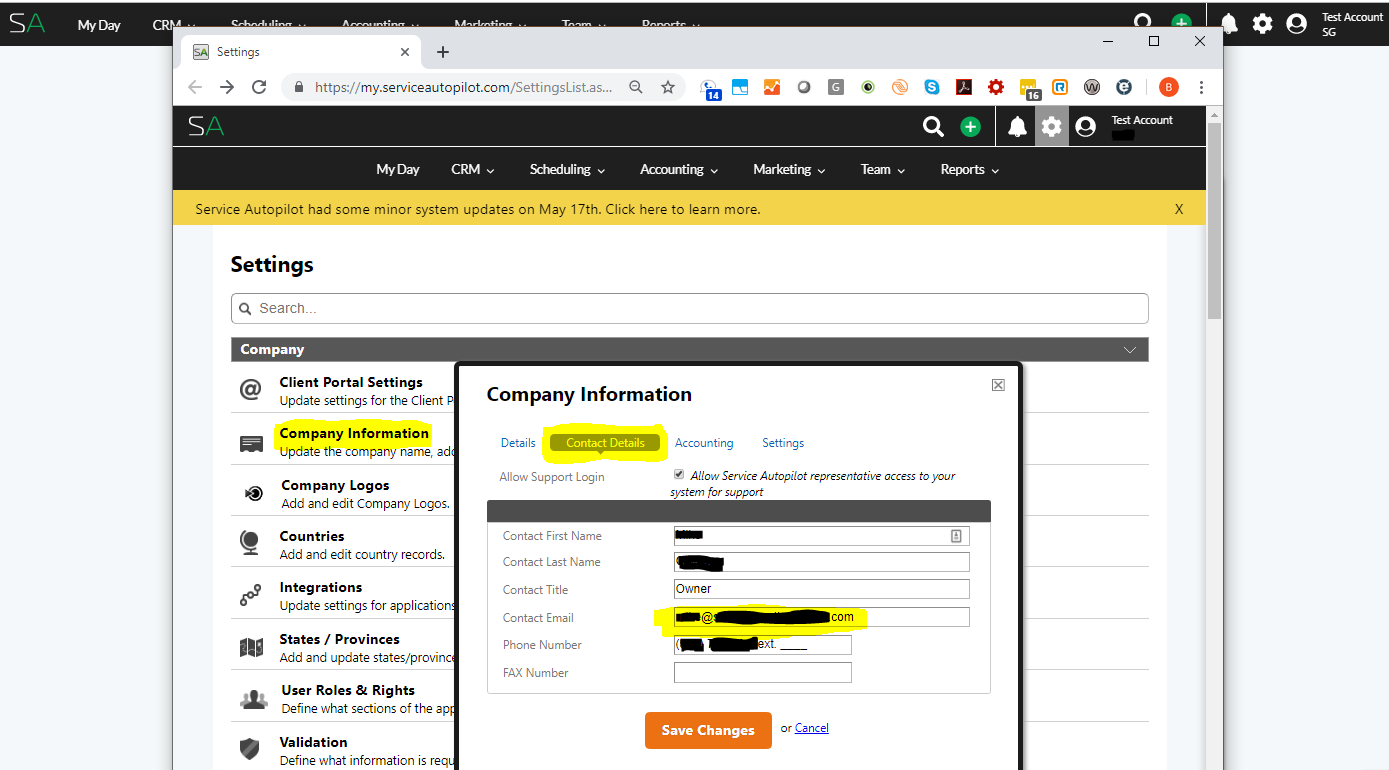
Service Autopilot then uses that address as the From: address.
Modern email systems try to protect their users from SPAM. To make sure your email coming from the Service Autopilot servers is not considered SPAM, you need to add Service Autopilot's Email Servers to your business DNS domain in a Sender Policy Framework (SPF) record so that they are allowed to send on your behalf.
You can do this by taking the following steps.
- Check your DNS domain to see if you already have an SPF record set up
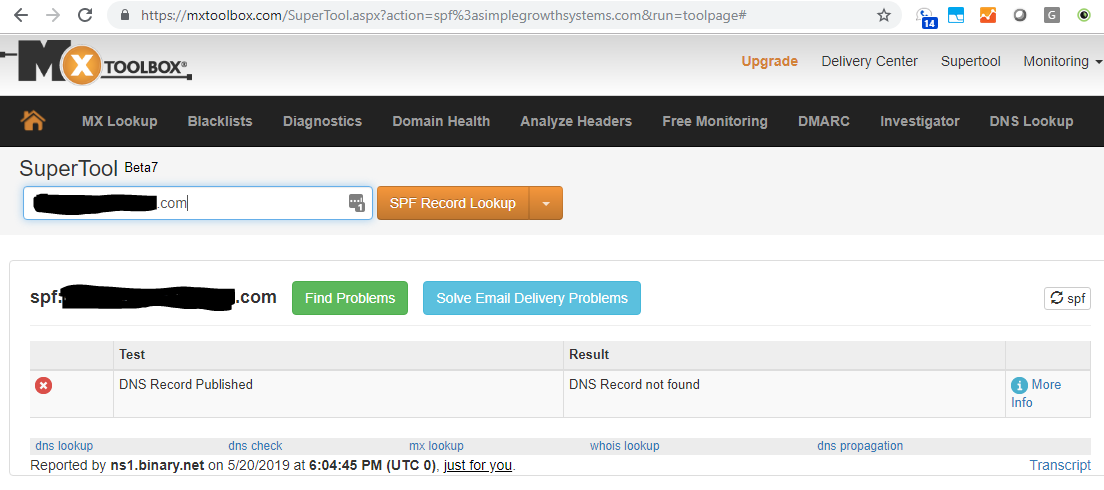
- Open a web browser to https://mxtoolbox.com/spf.aspx and fill in your business' DNS domain (e.g. simplegrowthsystems.com for us) and press the [SPF Record Lookup] button
- IF YOU DON'T HAVE AN SPF RECORD, the result will look like this:
- For NO SPF RECORD, follow these instructions:
- Login to the management pages for your business' DNS domain (e.g. simplegrowthsystems.com for us, managed by GoDaddy)
- Add a new DNS TXT Record
- Use the following line to add a value to the DNS TXT record as a placeholder until you get the specific information for your domain from your vendor:
- v=spf1 a mx ip4:167.89.72.219 ip4:67.89.72.43 ip4:50.31.32.80 -all
- The v=spf1 is required
- The a mx say to use your existing DNS A and MX records to authorize your existing vendor Email Servers to send mail on your behalf
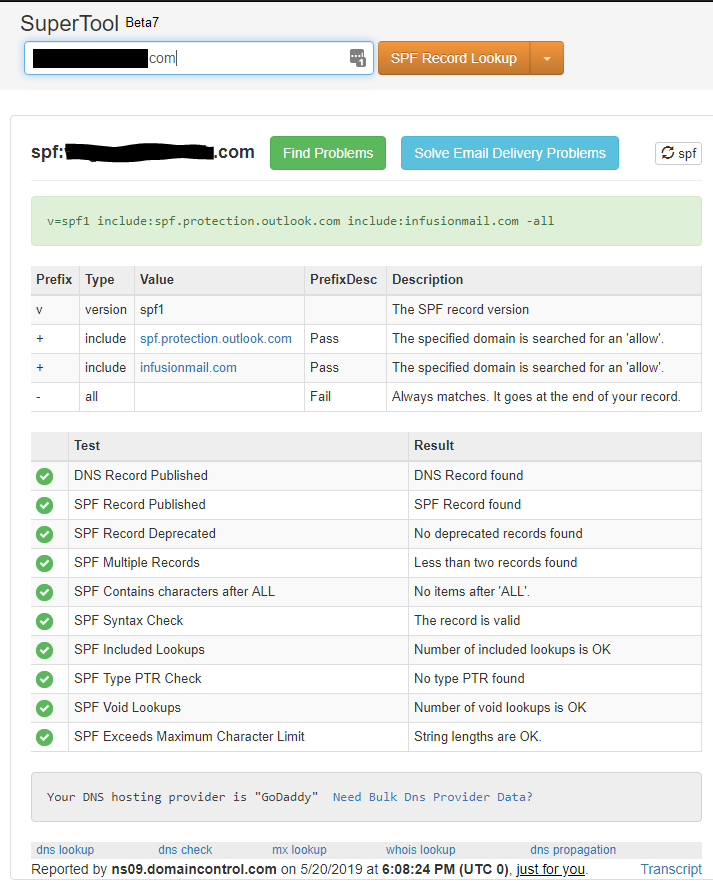
- When you get your vendor-specific SPF entries, you can replace the a mx entries with those. For example, in the above screenshot, you see 2 include: entries, one for Microsoft Office 365 and one for Infusionsoft, another email vendor. Depending on your email vendor(s), you would put SFP information for yours there.
- The 3 ip4: entries are for the 3 Service Autopilot Email Servers that will be sending mail on your behalf
- The -all tells receiving Email Servers to not accept email from any Email Server not listed in your SPF record. This protects you from SPAMMERS and hackers trying to pretend to be you by sending falsified email from their servers.
- Save the DNS TXT record
- DNS changes can take up to 48 hours to be noticed by all the DNS servers on the Internet, so you may have to wait a bit for the changes to take effect.
- IF YOU DO HAVE AN SPF RECORD, but don't have SA's servers listed, it may look like this:
- For an EXISTING SPF RECORD, follow these instructions:
- Login to the management pages for your business' DNS domain (e.g. simplegrowthsystems.com for us, managed by GoDaddy)
- Edit the existing DNS TXT record with v=spf1 in it by adding the following in BOLD RED using the example above which uses Microsoft Office 365 and Infusionsoft for email:
- v=spf1 include:spf.protection.outlook.com include:mail.infusionmail.com ip4:167.89.72.219 ip4:67.89.72.43 ip4:50.31.32.80 -all
- The 3 added ip4: entries are for the 3 Service Autopilot Email Servers what will be sending mail on your behalf
- Save the DNS TXT record
- DNS changes can take up to 48 hours to be noticed by all the DNS servers on the Internet, so you may have to wait a bit for the changes to take effect.
That's it! Doing this will improve the deliverability of emails sent from Service Autopilot on your behalf.
Comments
0 comments
Article is closed for comments.